
Please find attached the following GTM containers:
How to use the container
Smart Hotel Base Container with GA4 With Cookiescript
- In Google Tag Manager (https://tagmanager.google.com/), navigate to the relevant account > admin > import container.
- Choose the GA4 container attached to import into your existing workspace
- Choose Merge under import options.
- Fields to update
- Variable: GA4 ID – Insert your existing Google Analytics – GA4 ID, or abandon this change if you were using the same variable before.
- Variable: Cookiescript URL – Insert your existing Cookiescript URL into this variable. You can find this URL in your Cookiescript Account by visiting the "Install" page. The URL that you are looking for starts with https://cdn.cookie-script.com
-
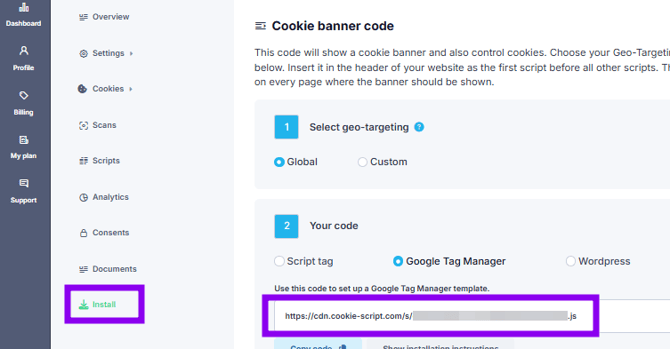
- Before publishing the container, again, navigate to the admin > Container Settings > Enable consent overview and Save.
- Publish the container
Mandatory Cross Domain Tracking for GA4 Setup
-
Enter https://analytics.google.com/ and choose your Google Analytics Account and then GA4 Property
-
Click on the Admin button located at the bottom of the left-hand nav menu
-
Choose Data collection and modification, and then select Data Stream
-
Select your data stream
-
Click on Configure Your Tag Settings and "Configure your domains". In the list, ensure your website domain and Smart Hotel booking engine domain are added with "Contains" match type.
-
Leave this page and click on Show More. Then, click on "List Unwanted Referrals". Again, ensure your website domain and Smart Hotel booking engine domain are added with "Referral domain contains" match type.
Optional for GA4 Setup
-
Enter https://analytics.google.com/ and choose your Google Analytics Account and then GA4 Property
-
Click on the Admin button located at the bottom of the left-hand nav menu
-
Choose Custom Definitions under Property Settings
-
Choose Create custom dimensions (this will be to track the link_url parameters of the click (outbound clicks), tel_link_click (telephone clicks), mail_link_click (mail clicks) events)
- Dimension Name: link_url
- Scope: Event
- Description: Link URL
- Event Parameter: link_url
- Save
-
-
After this setup, you will be able to use the link_url Custom Dimension on your Custom Exploration Reports.